
AI Assistants
Ask Claude, ChatGPT or Copilot Studio about your vacancies, your candidates and who can introduce them
Connect the assistant your recruiters already use to Wintro, and ask it in plain words:
- Which of our vacancies have the fewest candidates?
- Who are the best candidates for Sales Engineer, and who can introduce them?
- linkedin.com/in/sara-d…: does anyone here know her?
The assistant reads what your recruiters see in Wintro: your vacancies, their best candidates, and which colleagues know each one. It only reads. It never writes, moves a candidate or sends a message, and it never sees another company.
| Assistant | How it connects | Who connects it |
|---|---|---|
| Claude (claude.ai, the Claude app, Claude Code) | A connector. Each recruiter signs in to Wintro. | Every recruiter, themselves |
| ChatGPT | A plugin (custom MCP server). Each recruiter signs in to Wintro. | Every recruiter, themselves |
| Copilot Studio | An MCP tool on your agent, with a token | A recruiter admin, once per agent |
| Your own code | The Agent API, with a token | A recruiter admin |
Choose which assistants your company allows
Every assistant is off until a recruiter admin turns it on. Each one sends what it reads to its maker (Anthropic, OpenAI or Microsoft), so that is your company’s call.
Open Settings › API
In Wintro, as a recruiter admin: Settings › API.
Switch on the ones you allow
Under Allowed assistants, switch on Claude, ChatGPT, Copilot Studio or Your own code. Your recruiters can connect only the ones switched on.
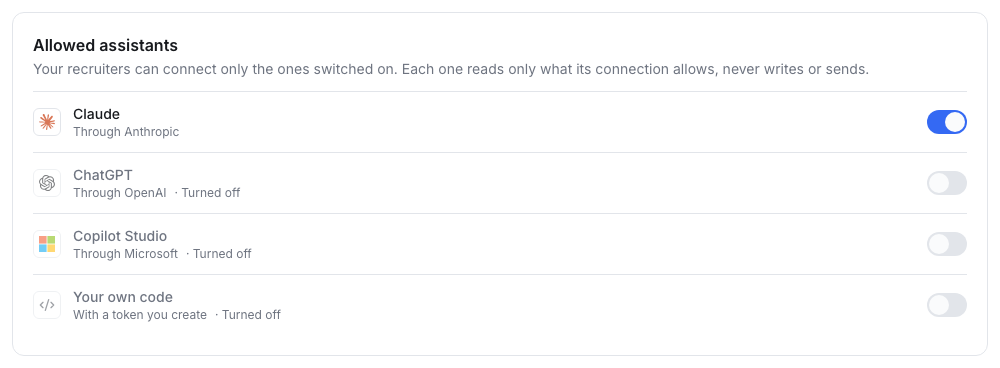
Switching one off ends every connection to it at its next question. Turn it on again and recruiters connect anew.
Connect Claude
The address of the Wintro connector:
https://www.wintro.app/api/wintro/mcpAdd the connector
In Claude (claude.ai or the Claude app): Settings › Connectors › Add custom connector. Name it
Wintroand paste the address.Sign in to Wintro
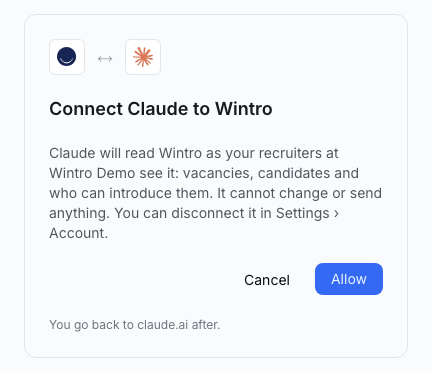
Keep what Claude picks (Sign in now, Use Claude’s published identity), leave Request headers empty and click Add. Sign in to Wintro and press Allow. ChatGPT shows the same page.
Ask
In a new chat, ask: Which of our vacancies have the fewest candidates?
Claude Code: add the connector from your terminal, then run /mcp, pick wintro and sign in to Wintro.
claude mcp add --transport http wintro https://www.wintro.app/api/wintro/mcpConnect ChatGPT
Add a custom MCP server
In ChatGPT: open Plugins, click + and choose Add custom MCP server. In a business workspace an admin may have to allow custom MCP servers first.
Paste the name and the address
Name it
Wintro, pastehttps://www.wintro.app/api/wintro/mcp, choose OAuth for authentication, confirm and click Create as a plugin.Sign in to Wintro
Sign in to Wintro when ChatGPT asks and press Allow.
Ask
In a new chat, pick the Wintro plugin and ask: Which of our vacancies have the fewest candidates?
Connect Copilot Studio
Copilot Studio reads Wintro with a token, so everyone who uses the agent reads through that one connection. A recruiter admin sets it up.
Make the token
In Wintro: Settings › API, click the Copilot Studio tile. Name it, untick what the agent should not do, and pick when the token expires. The dialog then walks you through each Copilot Studio screen with every value to copy, the token included. The token is shown once.
Add Wintro as an MCP server
In Copilot Studio, open your agent. On the Build tab click + next to Tools, then + Add to add an MCP server. Paste the server name (
Wintro), a description and the addresshttps://www.wintro.app/api/wintro/mcp. Under Authentication choose API key, type Header, header nameAuthorization. Click Add.Connect with the token
Open Not connected, choose Create new connection, paste the token from Wintro, click Create and then Add.
Ask
In Preview, ask: Which of our vacancies have the fewest candidates?
Give your agent instructions too: a start to paste is under Use cases.
What a connection sees
- Only your company, and only what your recruiters see in Wintro, with the same minimum match score. People your recruiters blocked are marked so the assistant does not suggest them.
- Only reading. Five questions: your vacancies, the best candidates for one, who can introduce a candidate, a person by their LinkedIn, and its own limits. The Agent API lists each with what it answers.
- Signed in as the person. Claude and ChatGPT act for the recruiter who signed in. When that recruiter leaves or stops recruiting, the connection stops.
- Within your limits. Every connection shares your company’s limits: 60 questions a minute and 5,000 a day, unless your plan says otherwise.
Disconnect
- A recruiter: Settings › Account › Connected assistants, then Disconnect. It loses access at once.
- A recruiter admin: Settings › API › Connections lists every connection and token in your company. Revoke any of them there.
- Every connection to one assistant: switch it off under Allowed assistants.
A signed-in connection also asks to sign in again after 30 days unused, and 90 days after it was made.


