
Linking your HiBob account
How to link your HiBob account to Wintro?
Wintro connects to HiBob directly through the HiBob Hiring API, with a service user you create in HiBob. Once connected, your job openings appear in Wintro as vacancies, and the candidates and applications in HiBob sync back to the referrals they belong to.
Good to know: HiBob’s API has no way to add a candidate, so Wintro reads from HiBob and writes nothing to it. A referral stays in Wintro; once the candidate is in HiBob, a recruiter links them from the referral, found by email. HiBob also does not share the names of its pipeline stages, so Wintro shows each stage with the candidates in it (see Map your stages).
Your Wintro contact enables the HiBob card under Settings → Integrations first. Ask them if you do not see it.
Prerequisites
Please carefully read the following to make sure you fulfill all the requirements to set up the integration:
- Your account belongs to the “Admins” permission group of your company’s HiBob instance, or someone in that group has shared their access with you. You need this to create the API credentials.
- Click on the “products” icon in the top left corner:

- A menu opens, and you should see the “System Settings” option:
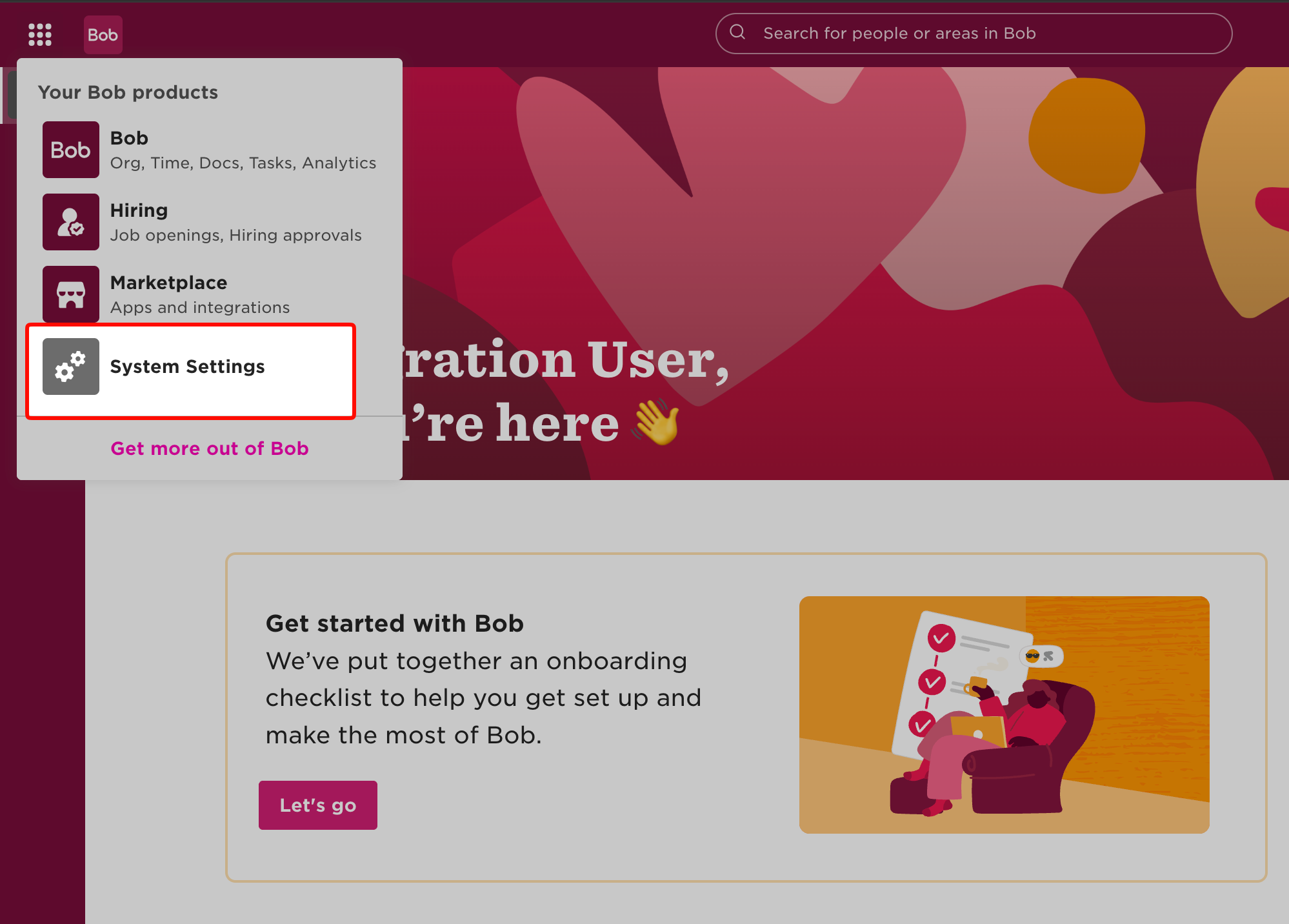
- If you cannot see “System Settings”, your account does not belong to the “Admins” permission group. Ask someone in that group to promote you or to take over the setup.
- Click on the “products” icon in the top left corner:
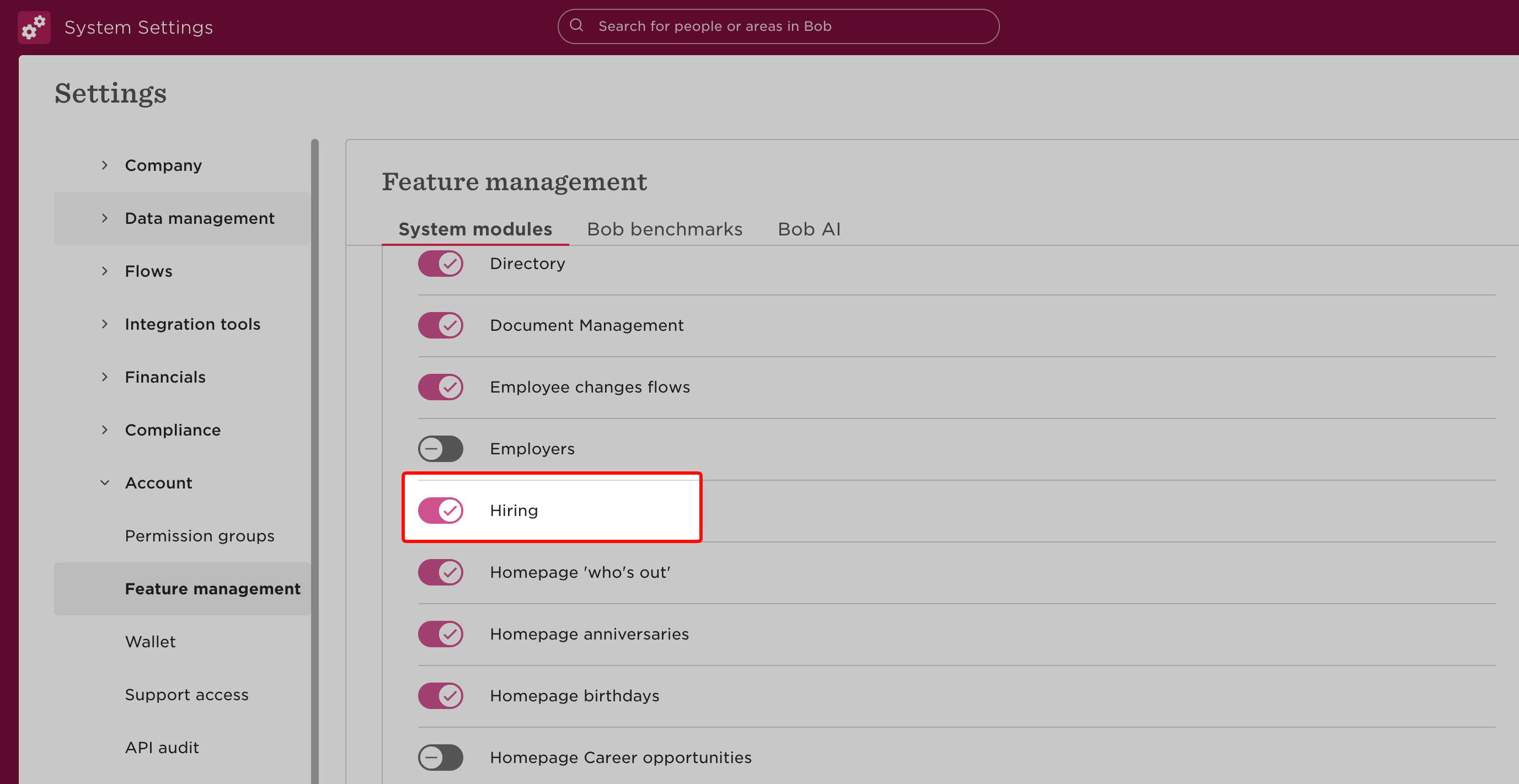
- The Hiring module is enabled. Go to System modules, scroll down to “Hiring” and make sure the toggle is on. If you cannot find the Hiring module in the list, ask HiBob support to enable it for you.
Create a service user
- Log into your HiBob instance (or the admin account that was shared with you).
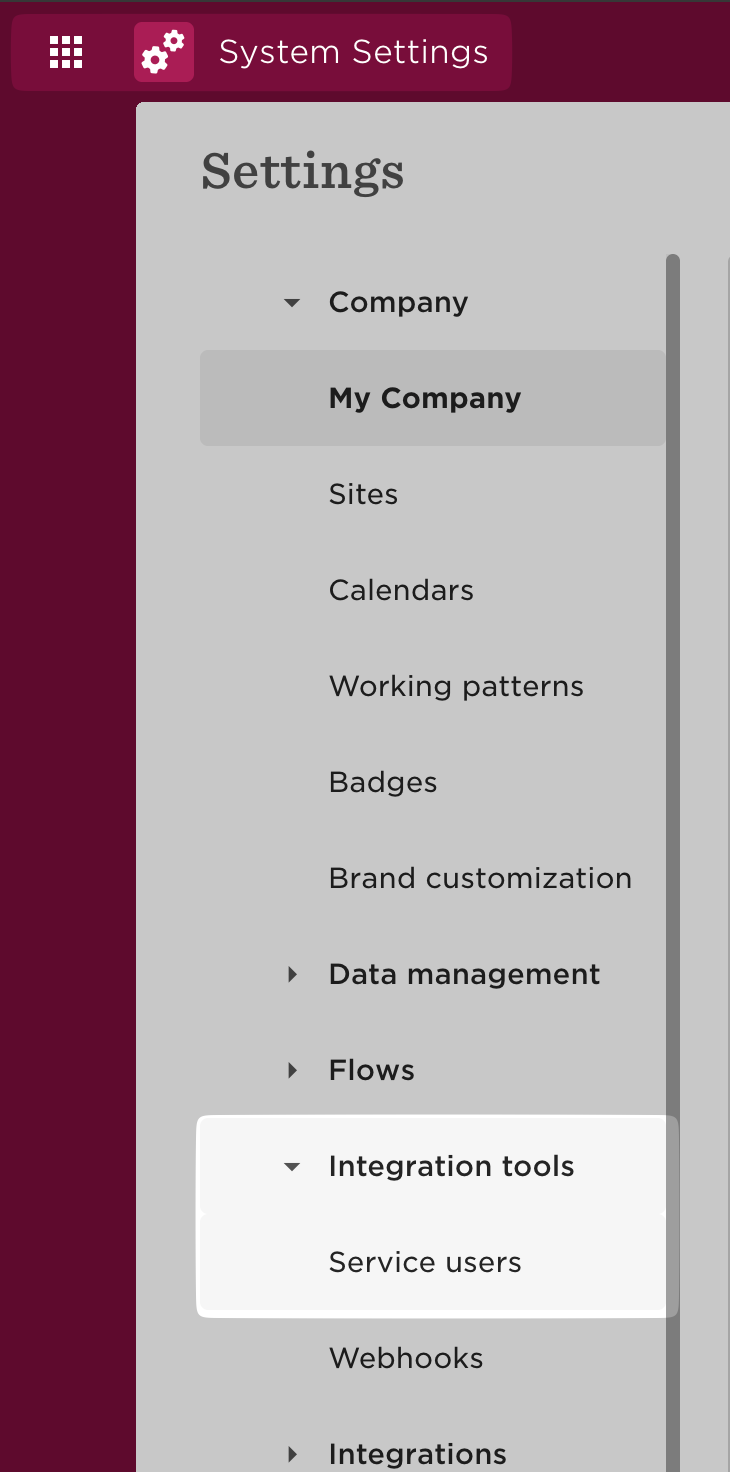
- Go to System Settings > Integration Tools > Service users, or open the service users tab directly:
- Click on “Create Service User”:
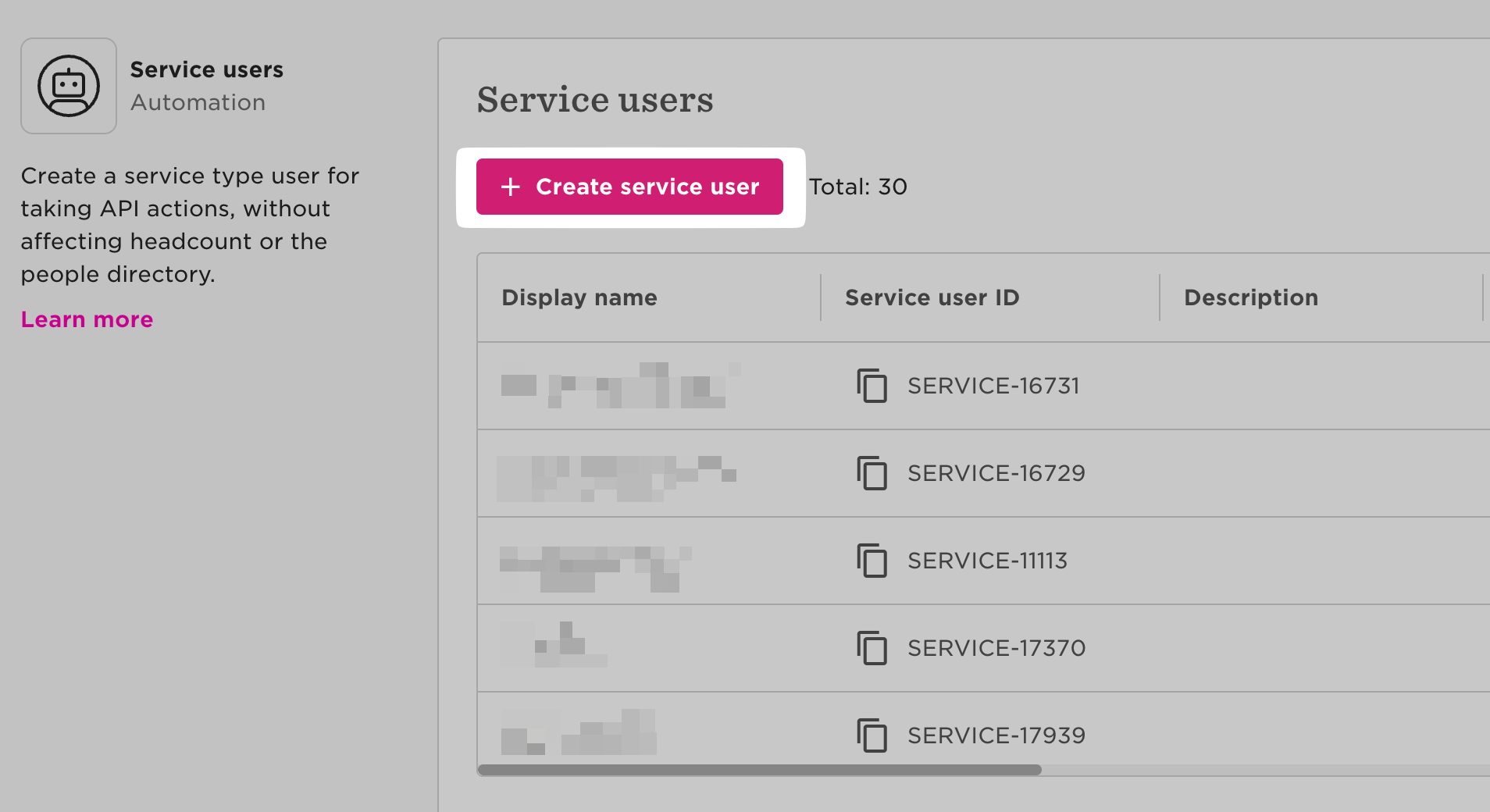
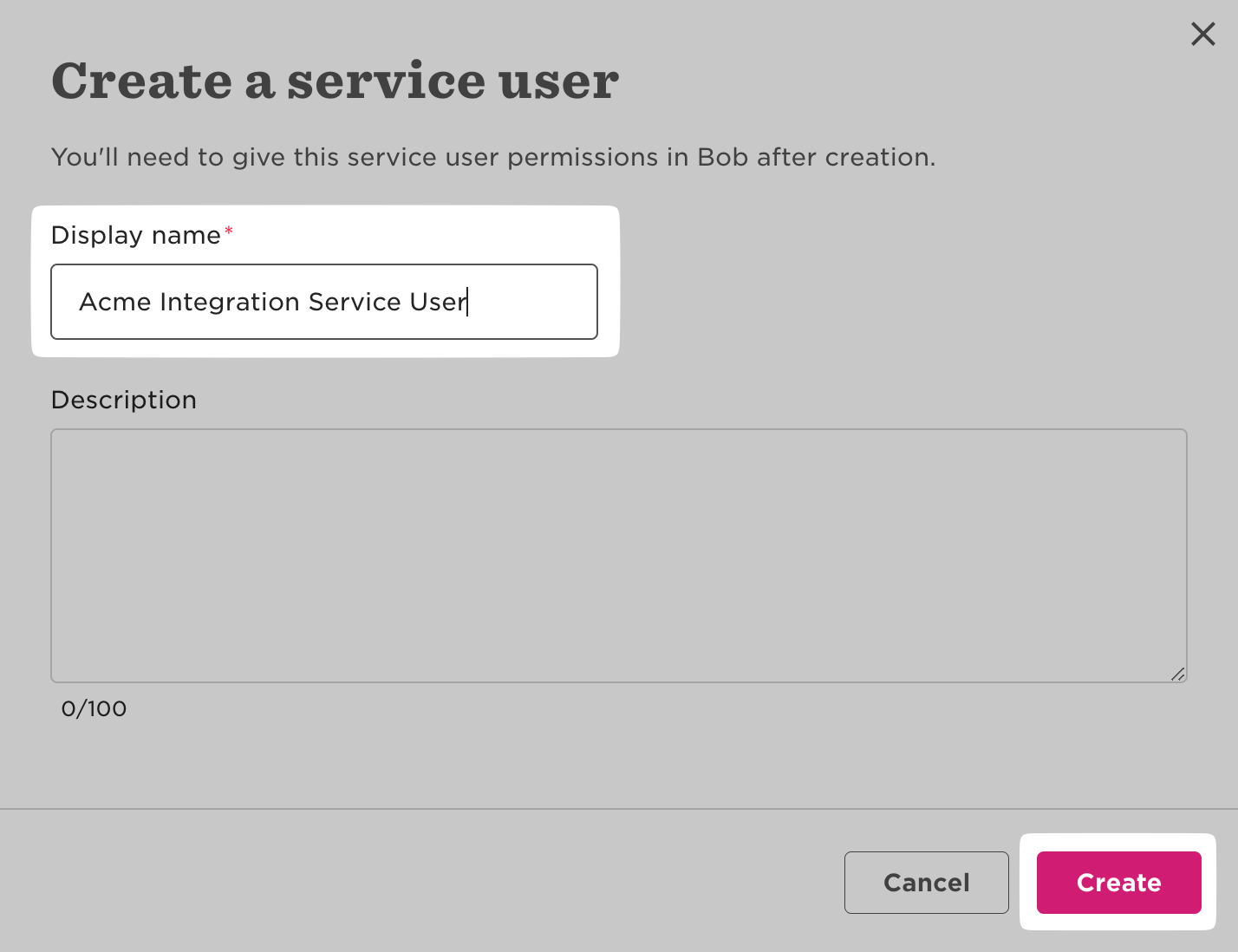
- Enter a display name, for example “Wintro Integration”, and click on “Create”:
- You can now see the credentials of the service user:
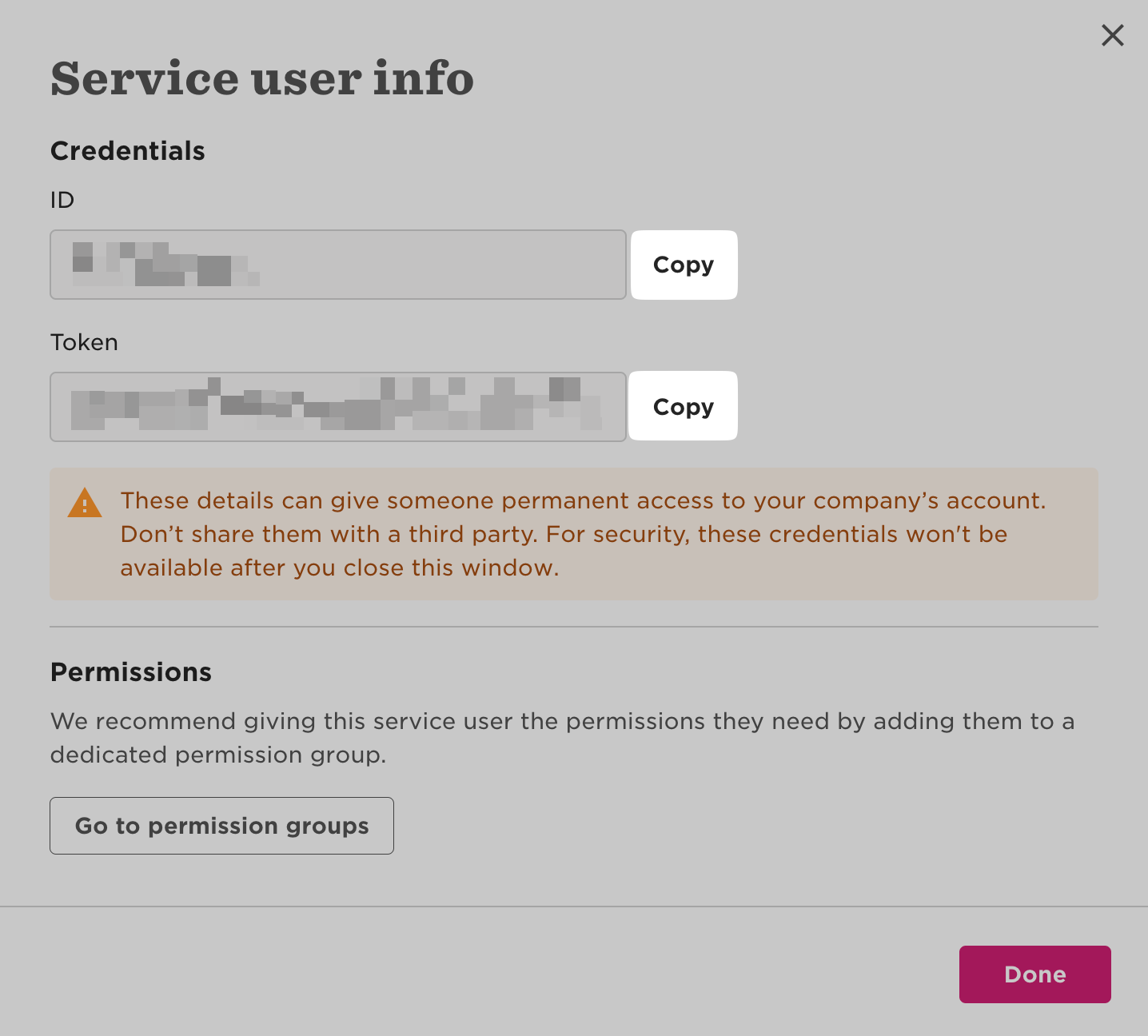
- Copy the service user ID and token into the connection dialog in Wintro.
Create a permission group
- Open the permission groups, or click on “Go to permissions group” in the dialog shown after creating the service user:
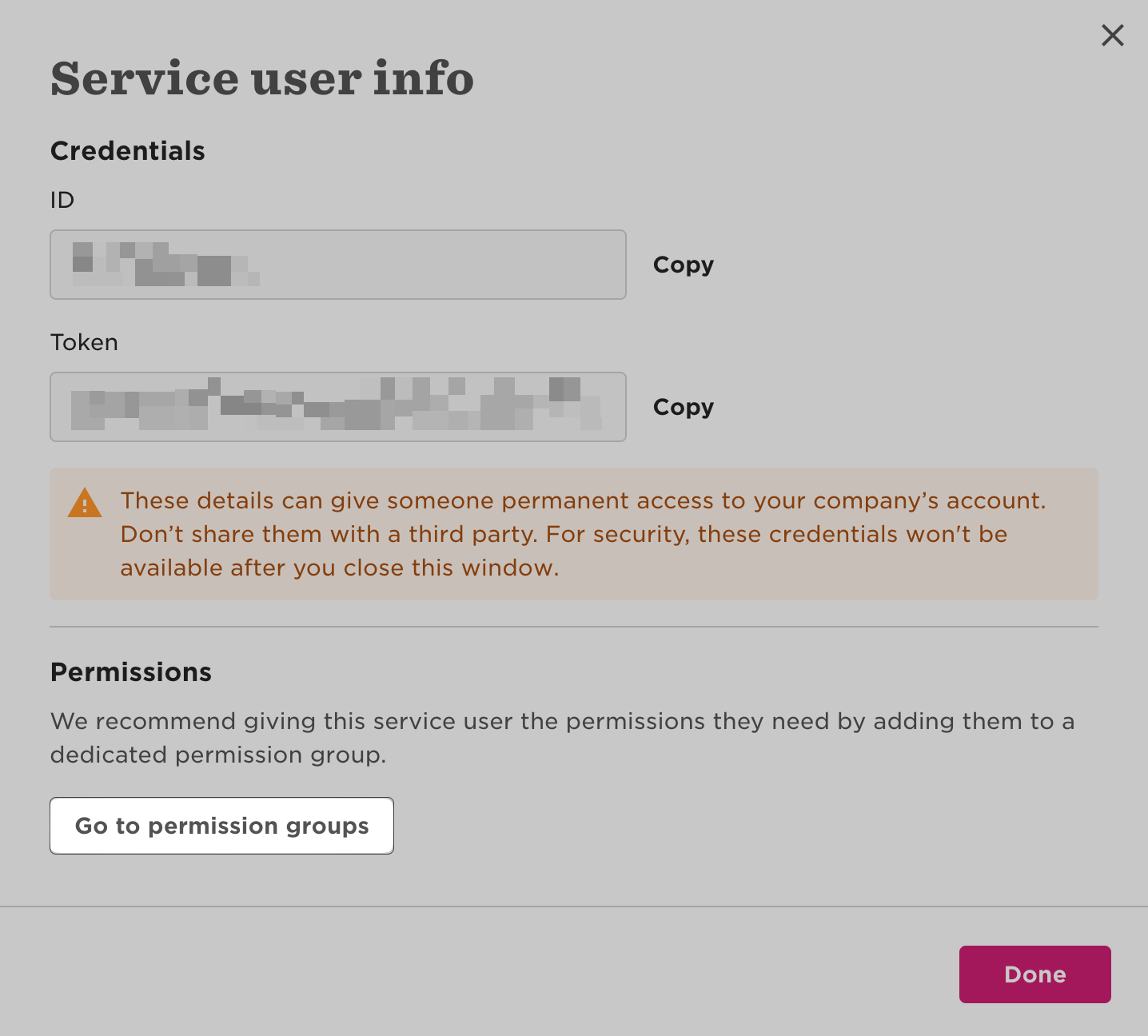
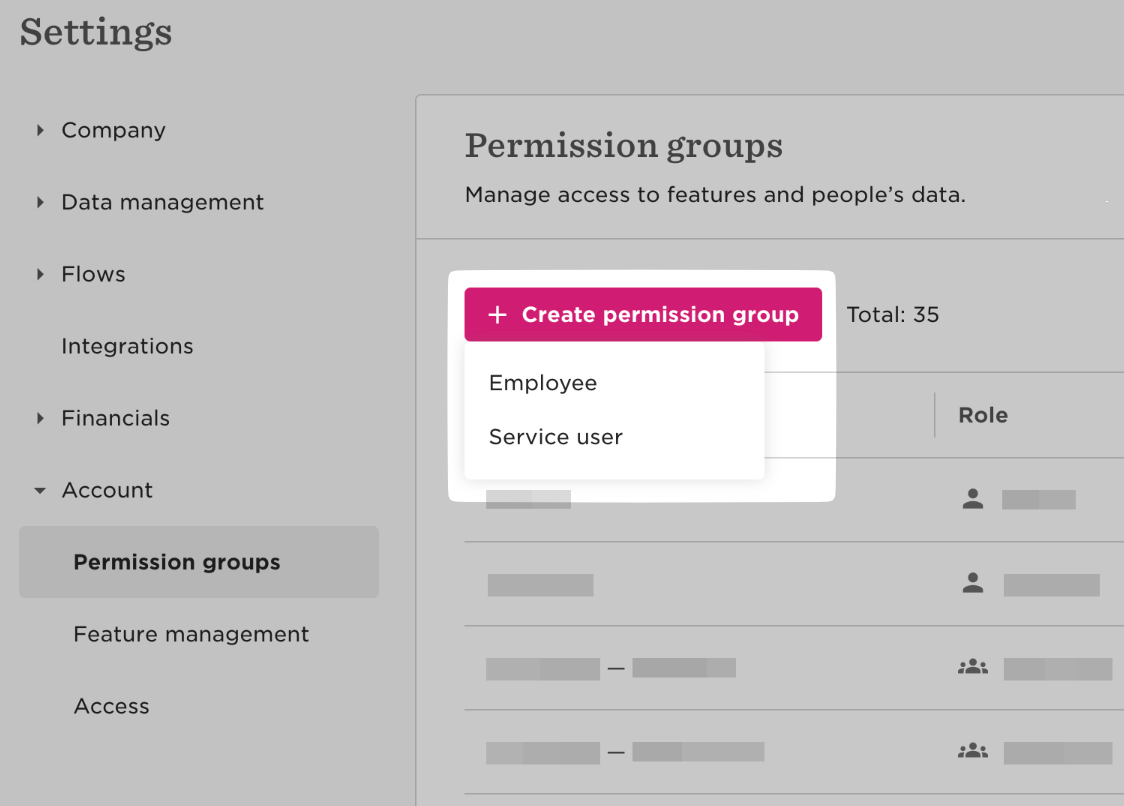
- Click on “Create permission group”, then on “Service user”:
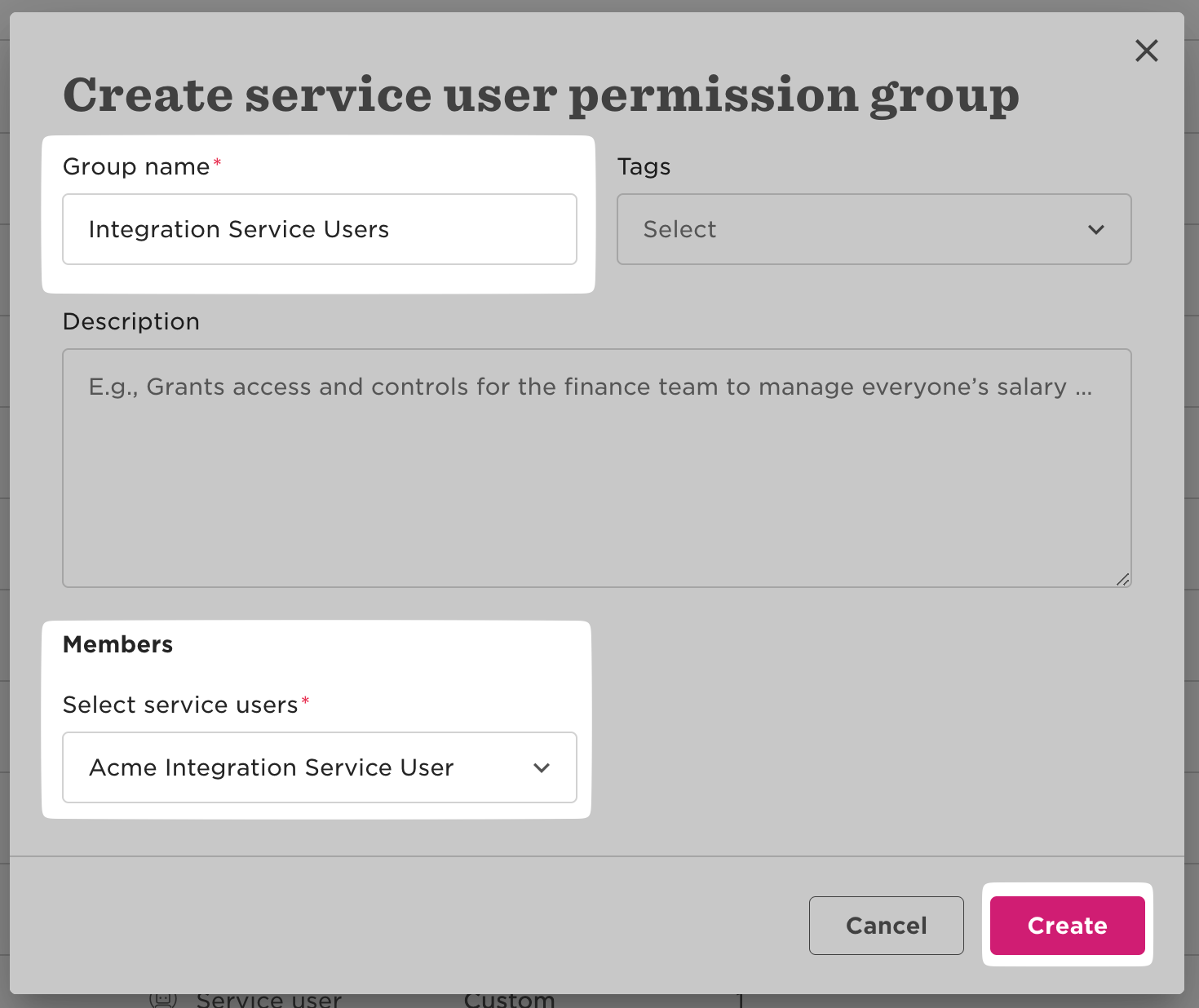
- Enter a group name, for example “Integration service users”.
- Under “Select service users”, search for the service user you just created, then click on “Create”:
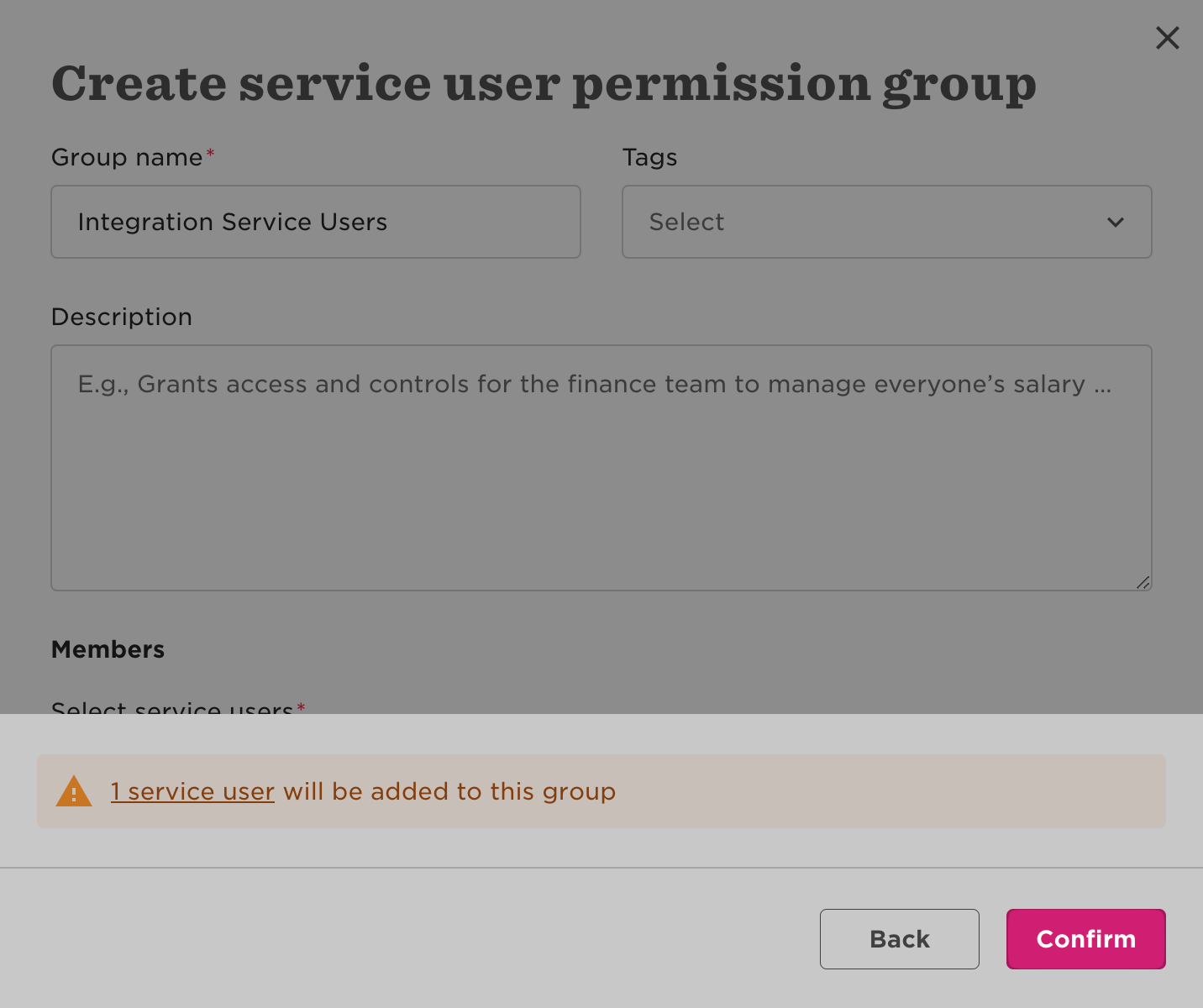
- Click on “Confirm”:
Configure the service user’s permissions
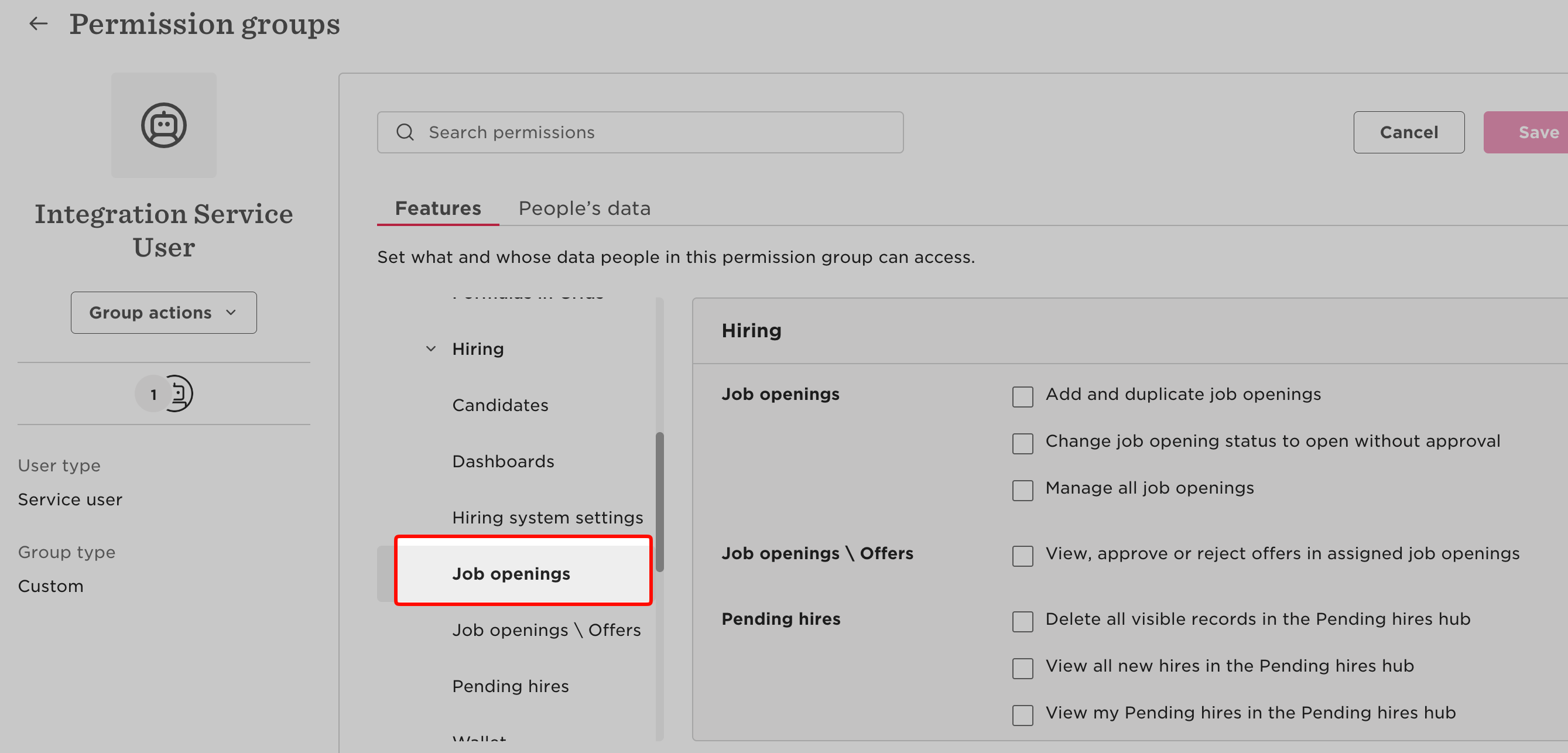
Next, give the service user’s permission group access to job openings:
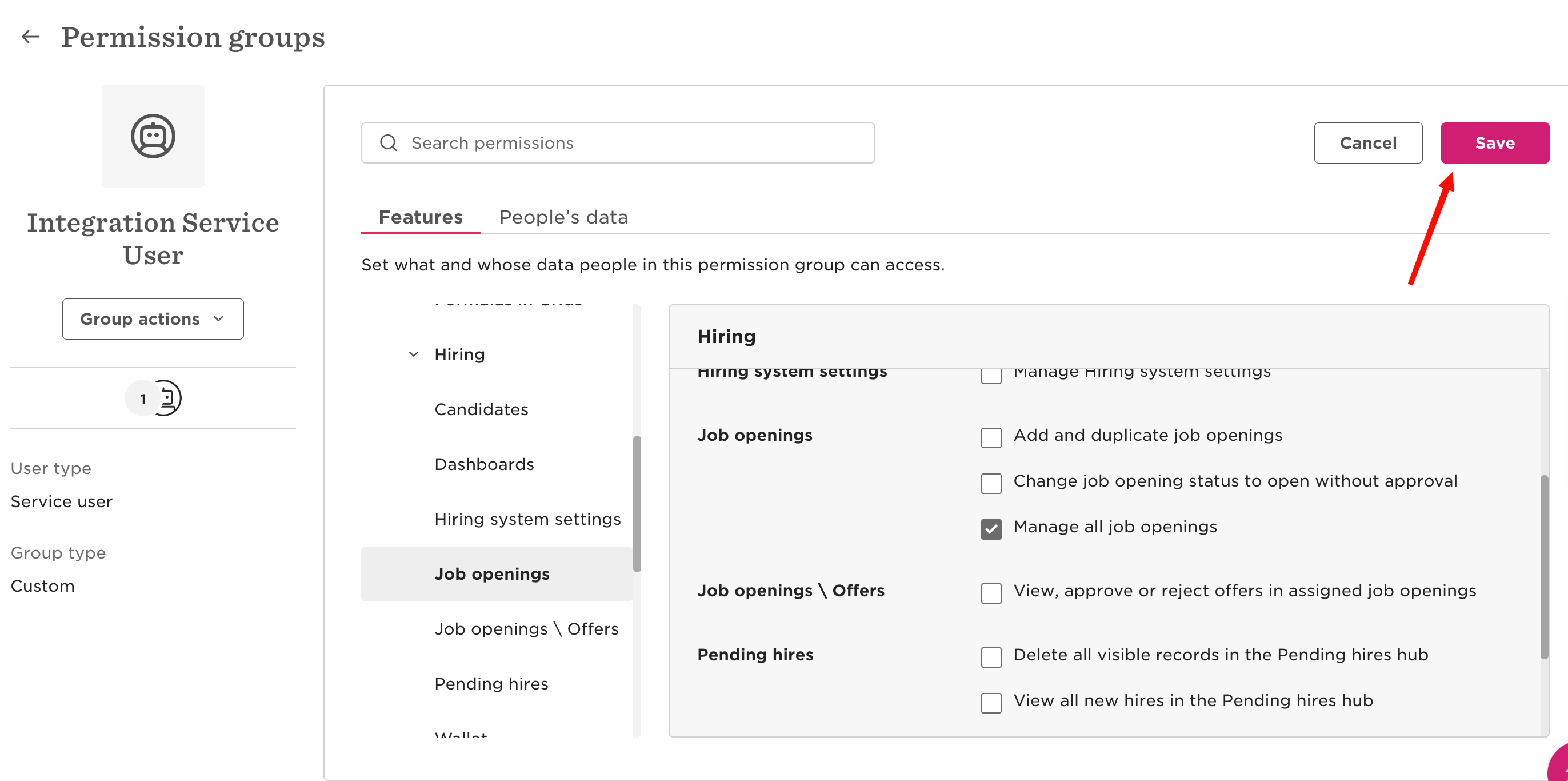
- In the permission group, scroll down to Hiring > Job Openings:
- Check “Manage all job openings”:
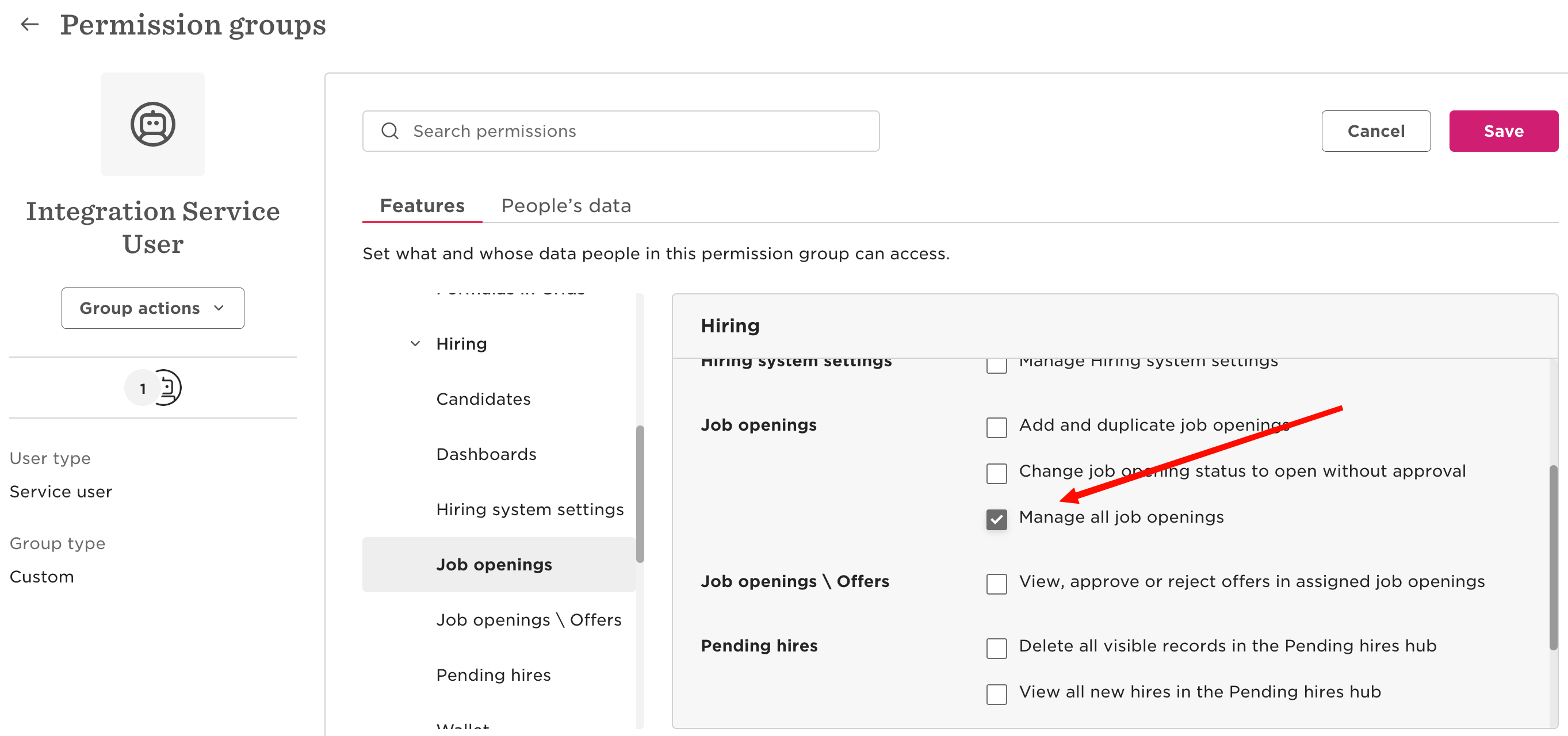
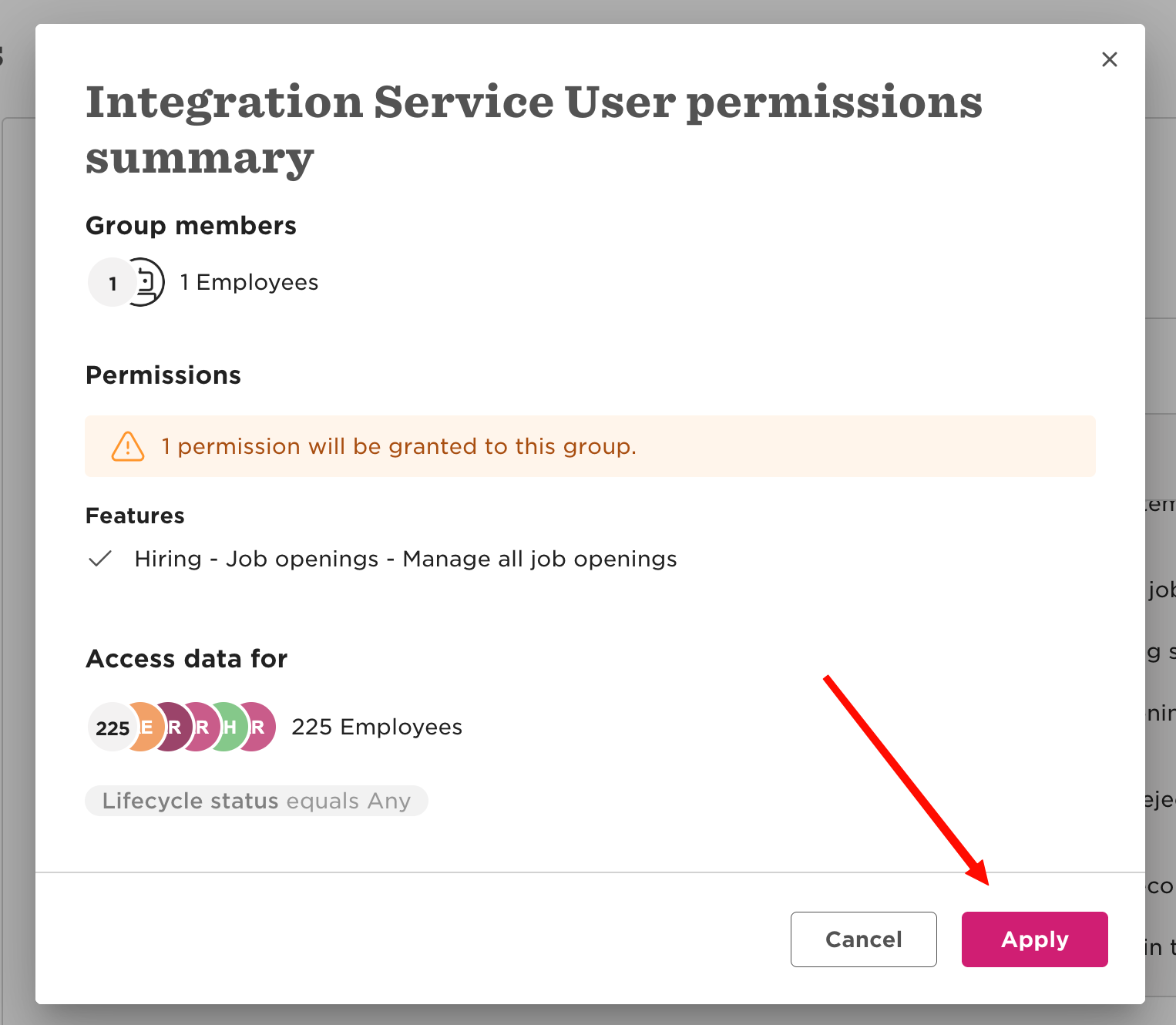
- Click on “Save”, then on “Apply” on the confirmation screen:
If the permissions are not set up correctly, the connection fails. Check the previous step and try again.
Connect in Wintro
- Go to Settings → Integrations and click Connect on the HiBob card. The first step says what Wintro reads and writes:
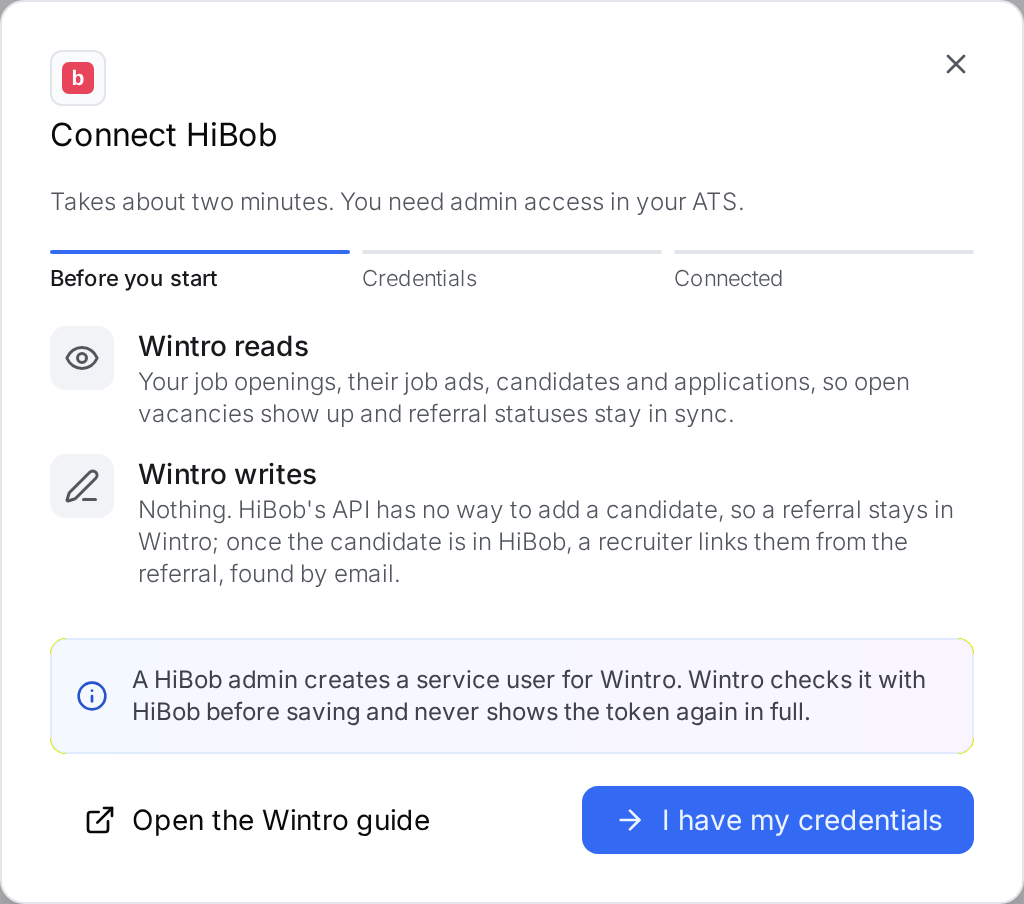
- Click “I have my credentials”, paste the service user ID (it starts with
SERVICE-) and the token, and click “Verify and connect”:
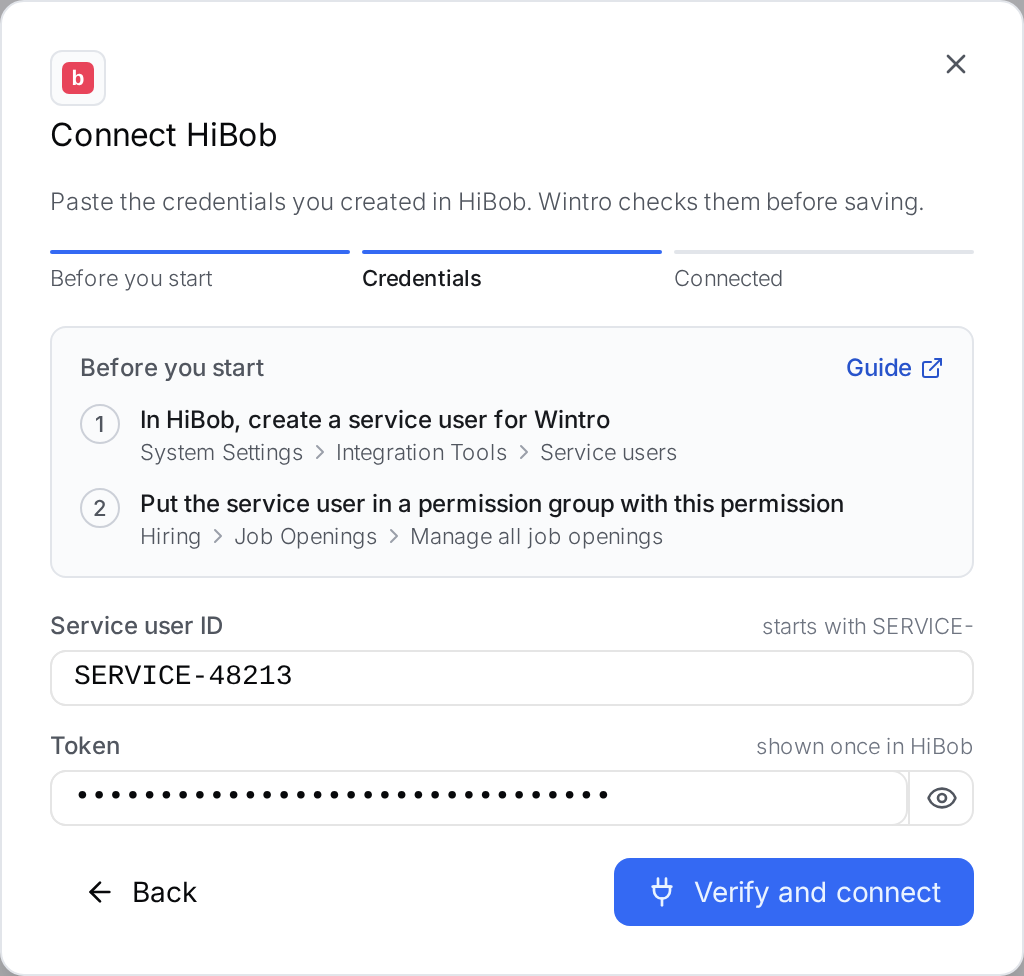
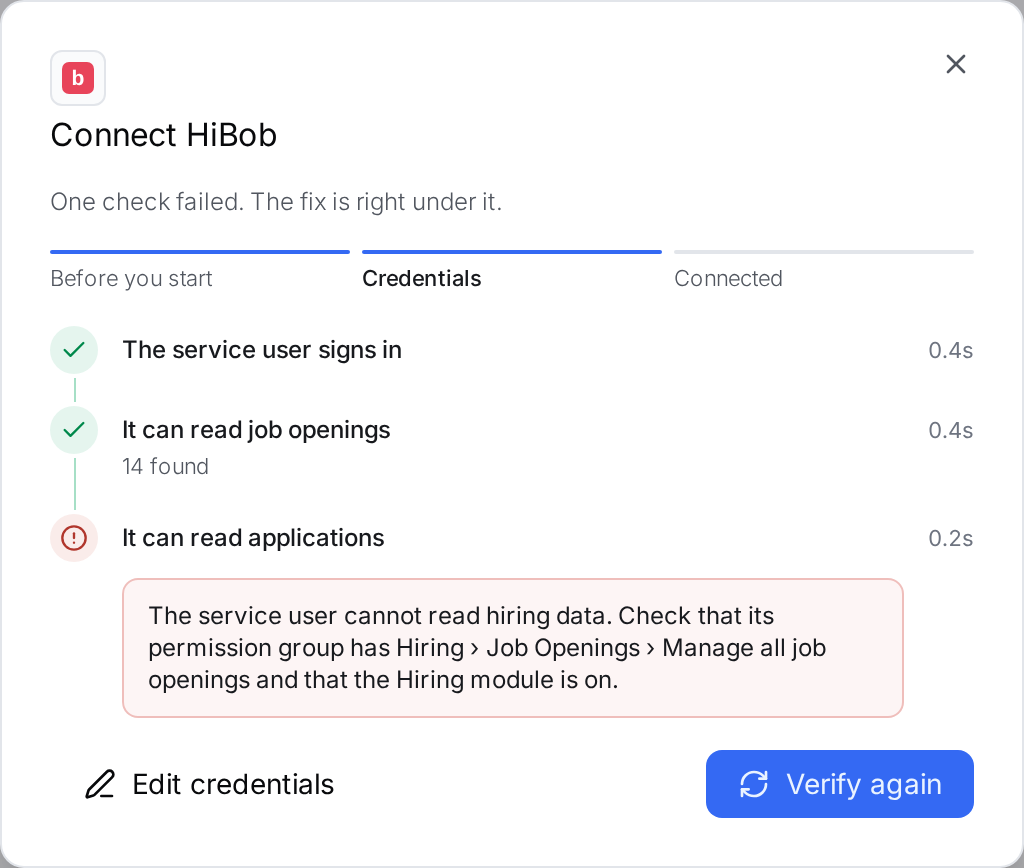
- Wintro checks the service user with HiBob before anything is saved: it signs in, reads your job openings and reads your applications. If a check fails, the fix is shown right under it. A failed applications check almost always means the permission group misses Manage all job openings, or the Hiring module is off:
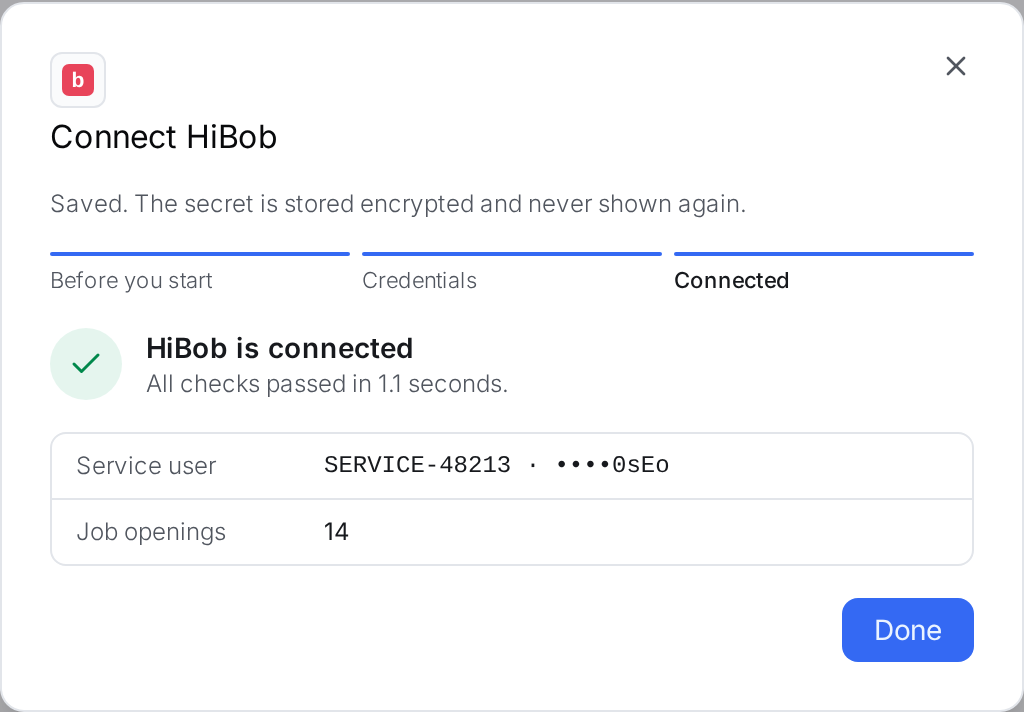
- Once all checks pass, the connection is saved and your vacancies start syncing within the hour. The token is stored encrypted and never shown again in full:
Map your stages
Under Settings → Integrations, choose which HiBob stages count as interviews, and which ones keep a candidate out of your matches. HiBob’s API gives each stage a number and no name, so Wintro lists every stage with how many candidates are in it now and a few of their names, for example Stage 42048 · 31 candidates · e.g. Anna de Vries, Tom Peeters. Look those candidates up in HiBob to recognise the stage. Hired and rejected come from HiBob itself and need no mapping.
What Wintro reads and writes
- Vacancies are your job openings, with the ad text of their job ads.
- Candidates and applications are read so a referral can be linked to its HiBob candidate, and its status and hire follow HiBob.
- Nothing is written to HiBob.
Permissions the service user needs
| Where in HiBob | Permission | Why |
|---|---|---|
| Hiring › Job Openings | Manage all job openings | Read job openings, job ads, candidates and applications |
The Hiring module has to be on. Wintro needs no other permissions.
To replace the service user, use Replace service user on the HiBob card. Disconnect removes the token and stops the sync.


